
Already recorded it?
01Video → long screenshot
Choose a scrolling screen recording from Photos, or send one through the iOS share sheet. Create a long screenshot without recording again.
Turn a scrolling recording into one long screenshot. Or crop, rotate, and arrange your images into something worth keeping.
Some things need a little more room.
Bring the pieces together and keep the context.
An illustration of frames from a scrolling recording.
You do the scrolling. We put it together.
Tap Create a long screenshot and follow the animated guide. Keep Infinite Screenshot selected, then tap Share Entire Screen or Start Broadcast in Apple’s prompt.
Dismiss Apple’s panel by tapping outside it. Open the app you want to capture, then swipe up steadily to reveal the content below.
Stop recording and return to Infinite Screenshot. Keep it open while your image is created, then save or export it.
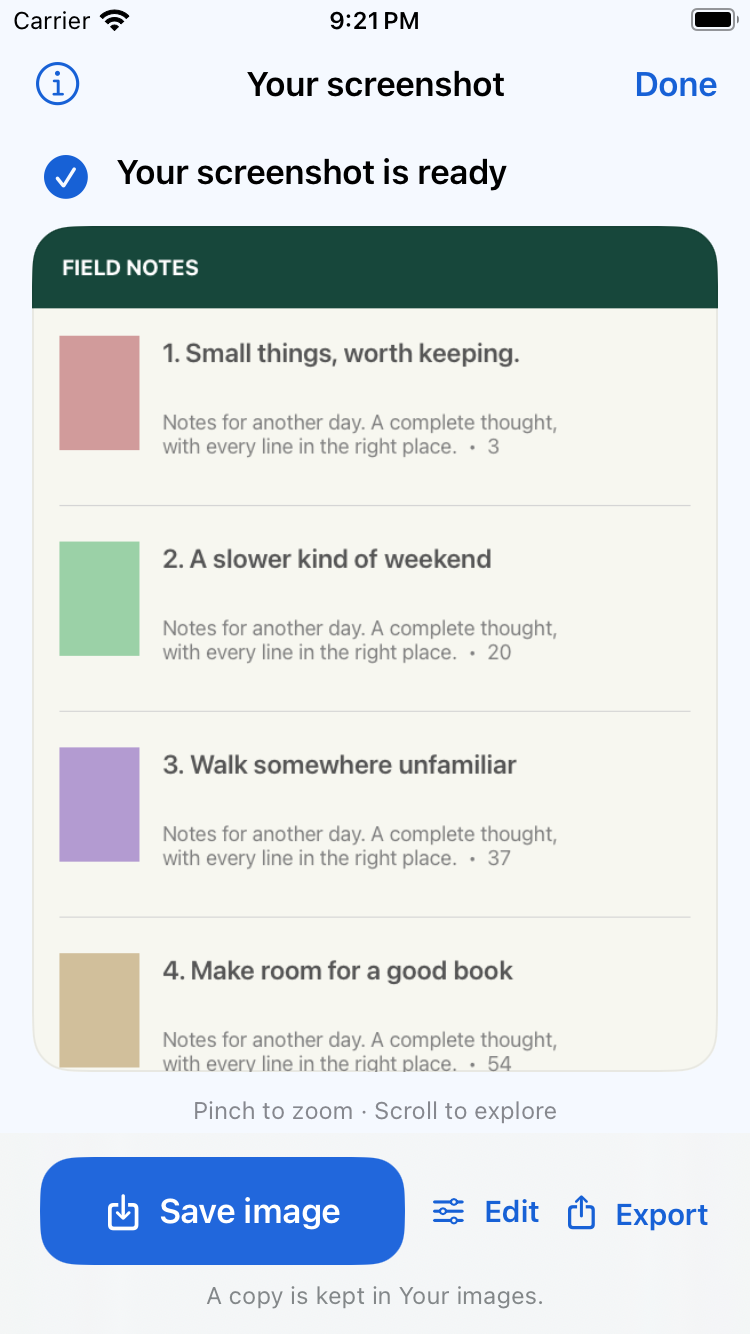
Start with a recording. Or something already in Photos.
Choose a scrolling screen recording from Photos, or send one through the iOS share sheet. Create a long screenshot without recording again.
Crop, rotate, and reorder photos or screenshots. Combine vertically or horizontally, with a live preview before you finish.
Save an image to Photos or export a PNG or PDF. Find completed images together in Your images, ready to rename and share.
Preview your layout. Keep your favourites.
Come back when you’re ready.
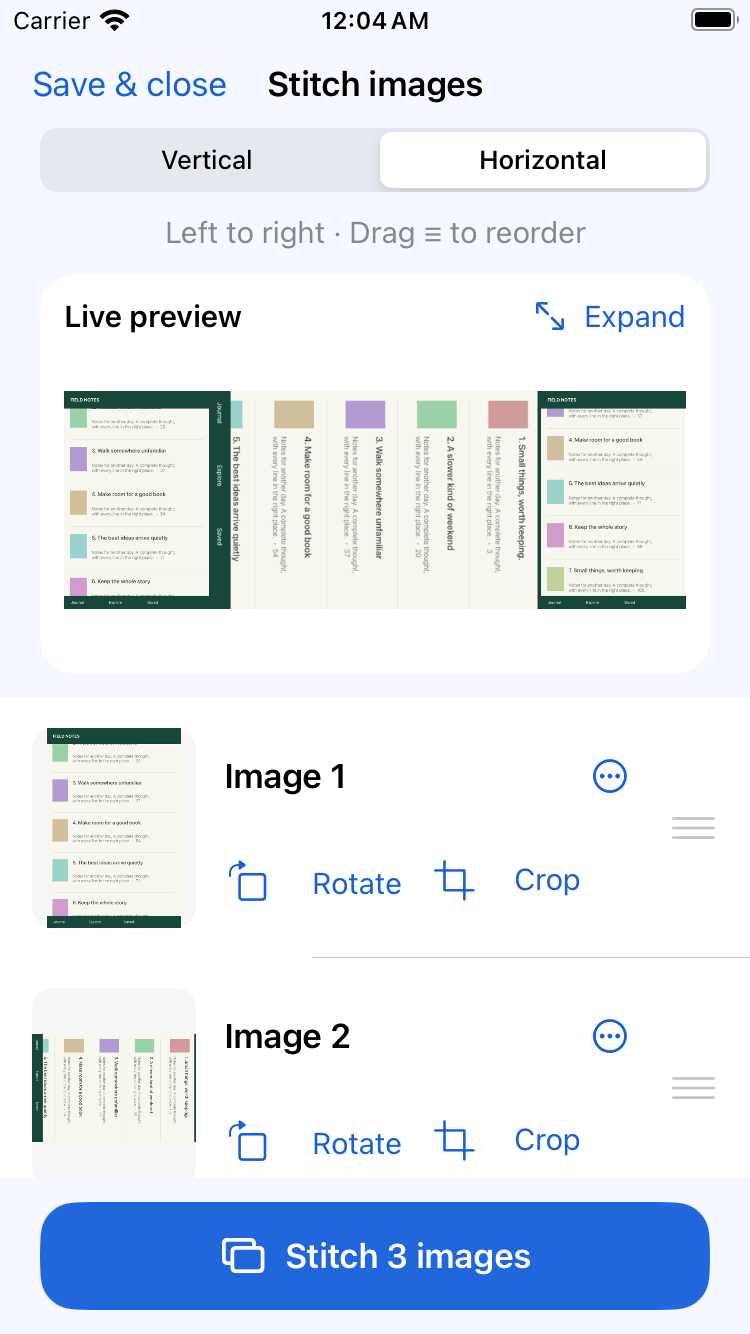
Crop, rotate, and reorder. Check the live preview, then stitch vertically or horizontally.
Save image, Edit, and Export put the next step right where you need it.
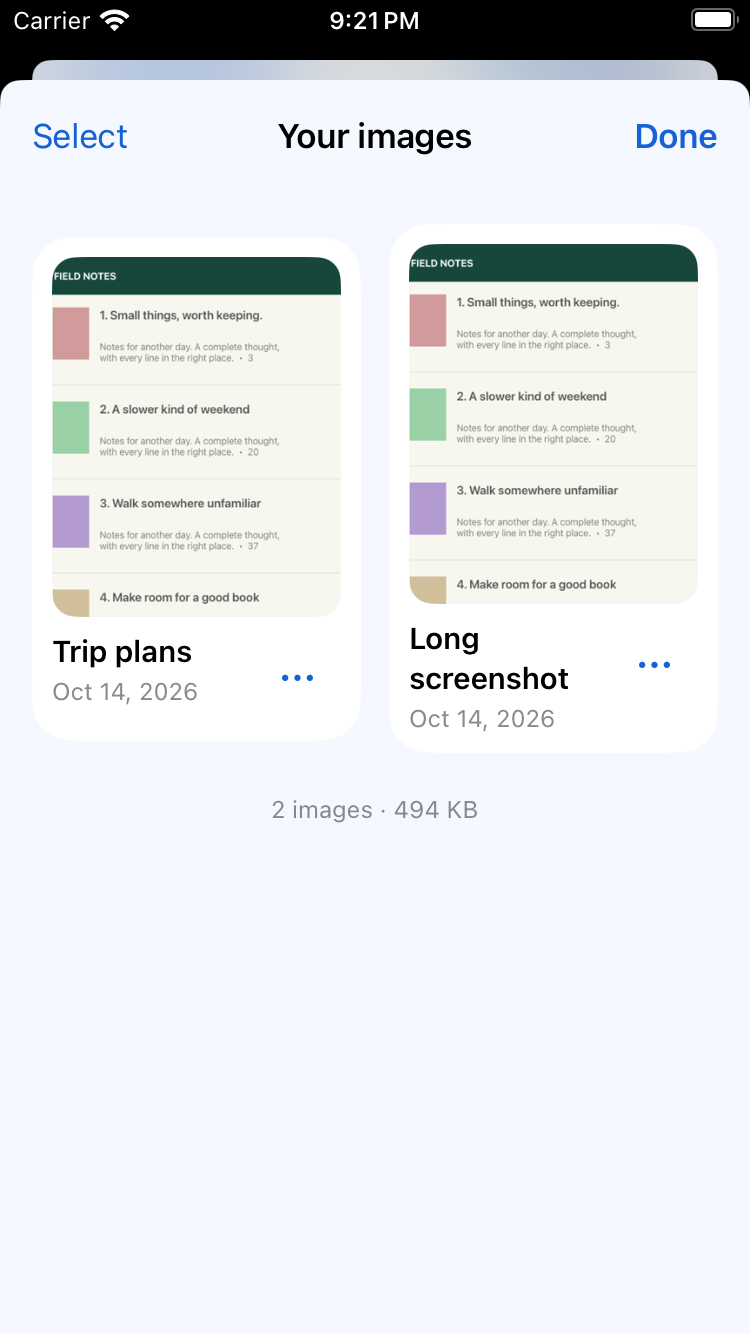
Name your images. Revisit favourites. Select several to share or delete together.
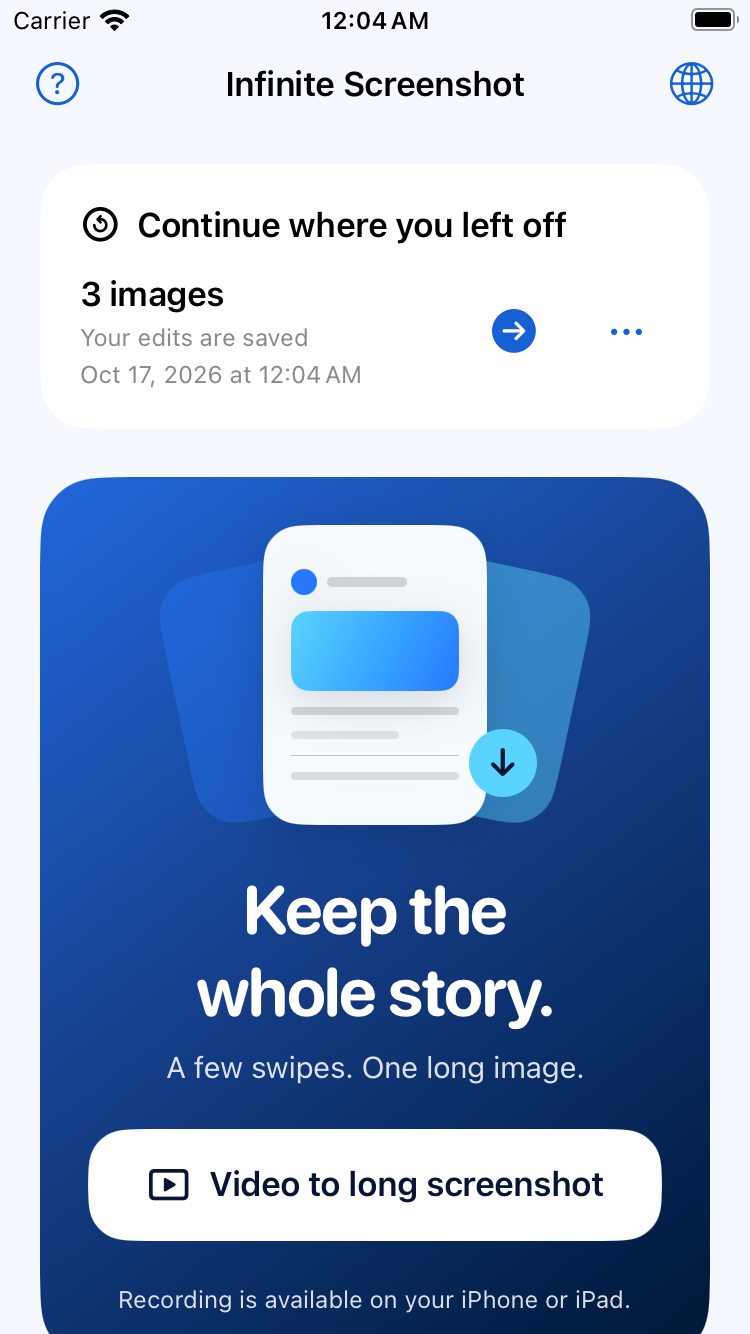
Your unfinished arrangement stays saved. Return to your crops, rotations, order, and layout.
Actual app screens with sample content, captured in the iPhone simulator. Screen recording is available on a physical iPhone or iPad.
Select images or a screen recording, tap Share, and choose Infinite Screenshot. Return to the app to continue.
Open Capture a web page from the globe button. Stop the capture when you’ve reached the section you want.
Use Save & close while arranging images. Imported videos stay available too, so a retry doesn’t mean selecting them again.
Recording and stitching happen on your iPhone or iPad. No audio in recordings made here. You decide what to save and who to share it with.
iOS privacy, in plain wordsYes, you can record scrolling content in other apps. Results depend on matching visible content. Moving video, protected screens, changing layouts, and large scroll jumps can prevent a clean join. Partial results are clearly marked.
On iPhone and iPad, you scroll the page yourself. After recording, return to Infinite Screenshot and keep it open while it creates your image.
Yes. Stitch images combines photos or screenshots side by side or top to bottom. Crop, rotate, and reorder each image first. Matching content is not required, and repeated content is not automatically removed.
Imported recordings and image arrangements are saved on your device. Choose Continue where you left off to reopen them. Image order, crops, rotations, and layout are kept; video processing restarts from the saved recording. Use Save & close in the image composer when you want a break.
We’re preparing Infinite Screenshot for the App Store. The download link will appear here when it’s available. It will support iOS and iPadOS 17 or later.
Your favourite things deserve more than one screen.
Explore the iPhone & iPad app